Updates and Rollback
Replace a container with one running the new image, keep everything that made it yours, and get the old one back if the new one fails.
Why Use This Feature?
- Restores the previous container when the new one stops, turns unhealthy, or never settles so a bad release doesn't take your service down.
- Reattaches anonymous volumes by name so data that lives in an unnamed volume is still there after the update.
- Drops settings that were only defaults of the old image so the new image's command, ports, and environment defaults take effect.
- Checks the registry before pulling so containers that are already current are never downloaded again.
- Updates Outpost's own container too, with the same rollback, so the updater never needs a manual pull.
Checking for a New Image
For each container, Outpost decides whether a newer image exists:
- Ask the registry — Outpost requests the remote digest for the container's image tag. A digest that matches the running image means
up-to-date, and a different one on a monitor-only container meansavailable, both without downloading anything. - Pull and compare — Outpost pulls the tag for every other container whose digest differs, and for any container when the registry can't report a digest. If the pulled image is the one already running, the container is
up-to-date. - Decide — A monitor-only container whose pulled image is new is reported as
availableand left as it is. Every other container goes on to recreation.
info
Digest lookups always use HTTPS, so a registry served over plain HTTP can't report a digest. Images from such a registry are always pulled to compare, including those of monitor-only containers.
Recreating the Container
The old container is renamed rather than removed until the new one has proven itself. Its volumes are never deleted.
What Carries Over
- Configuration — Environment, labels, command, entrypoint, user, working directory, restart policy, ports, devices, and resource limits.
- Volumes — Bind mounts, named volumes, and anonymous volumes, which are reattached by name so their data survives.
- Networks — Every network the container was on, with its aliases, static IP addresses, and links.
What Is Dropped
Settings that were inherited unchanged from the old image are removed so the new image can supply its own:
- Command, entrypoint, working directory, user, healthcheck, and stop signal, when they equal the old image's values.
- Environment variables, labels, exposed ports, and volume declarations that match the old image entry for entry.
- The hostname, when it was just the old container's ID.
Anything you set yourself, such as an environment variable in your Compose file, is kept even if the new image changes its default. The exception is a value identical to the old image's default, which can't be told apart from that default and is dropped with it.
Health and Settle Checks
After starting the new container, Outpost checks on it every second:
- With a healthcheck — It must report
healthywithin the Health timeout from Settings (default120seconds). - Without a healthcheck — It must still be running after the settle period, set by Settle time in Settings (default
10seconds).
The update fails as soon as the container stops, reports a state other than running, enters restarting, increases its restart count, or reports unhealthy. It is recommended to keep the settle period shorter than the health timeout, since the health timeout also ends the wait.
Rollback
When anything goes wrong after the old container was stopped, Outpost performs a rollback:
- Removes the new container, if one was created.
- Renames the old container back to its original name.
- Starts the old container again.
The result is rolled-back, with the reason in its detail, such as New container is unhealthy; rolled back to the previous container. If the rollback itself fails, the result is failed and the detail explains both errors.
Cleanup
With Clean up old images on in Settings (the default), the old image is removed after a successful update. If another container still uses that image, it is kept and the update still counts as successful.
An unexpected daemon error while removing the image also leaves the result as updated, with a warning appended to its detail.
How Outpost Updates Itself
Outpost keeps itself current too, updating its own container like any other, as the last one in each cycle. Because Outpost can't stop itself and still watch its replacement, a short-lived helper container does the swap:
- Hand over — When Outpost finds a newer image of itself, it saves the check so far to
self-update.jsonin the data directory. It then starts a helper named<container name>-outpost-self-updatefrom the image it runs now. - Swap — The helper stops Outpost, renames it, creates and starts the new Outpost, and waits until it's healthy, the same recreation every container gets. If the new Outpost fails, the helper puts the old one back.
- Finish the check — The Outpost running afterwards, new or restored, finishes the check, so the whole check gets one History entry and one round of notifications. On success it removes the helper and, with Clean up old images on, the previous image.
The dashboard loses its connection while Outpost restarts, and reconnects on its own. A check started from Outpost's own row on the Containers page asks first, as described in Web Dashboard.
Requirements
/dataon a volume — The new Outpost needs the account and the history, so the data directory has to be a volume or a bind mount. Otherwise Outpost's line isskippedwithOutpost can't update itself because /data isn't on a volume, so its account and history would be lost.- The Docker socket from the host — With a
unix://DOCKER_HOST, the helper mounts the same socket, so it has to come from the host. Otherwise the line isskippedwithOutpost can't update itself because the Docker socket at /var/run/docker.sock isn't mounted from the host. - Its own container — Outpost has to recognize its own container, as described in Labels and Modes. Otherwise it leaves every Outpost container alone with
Outpost couldn't find its own container, so it leaves Outpost containers alone.
When It Fails
- New image fails — If the new Outpost stops, turns unhealthy, or isn't healthy in time, the helper starts the old one again, and Outpost's line is
rolled-back. Later checks skip that image until a newer one appears, withThe new image (3f2a9c1b7d4e) didn't start last time, so Outpost waits for a newer one. - Helper fails after stopping Outpost — Outpost's line is
failed, and the helper is kept so its log shows why, with a detail that ends in; see docker logs outpost-outpost-self-updatefor a container namedoutpost. Outpost removes stopped helpers the next time it starts. - Helper fails before stopping Outpost — Outpost's line is
failedwith a reason such asCouldn't start the self-update helper: ...,The self-update helper didn't finish in time, orThe self-update helper stopped before it finished (exit code 1). The next check tries again.
See Troubleshooting for each reason and what to do about it.
Result Statuses
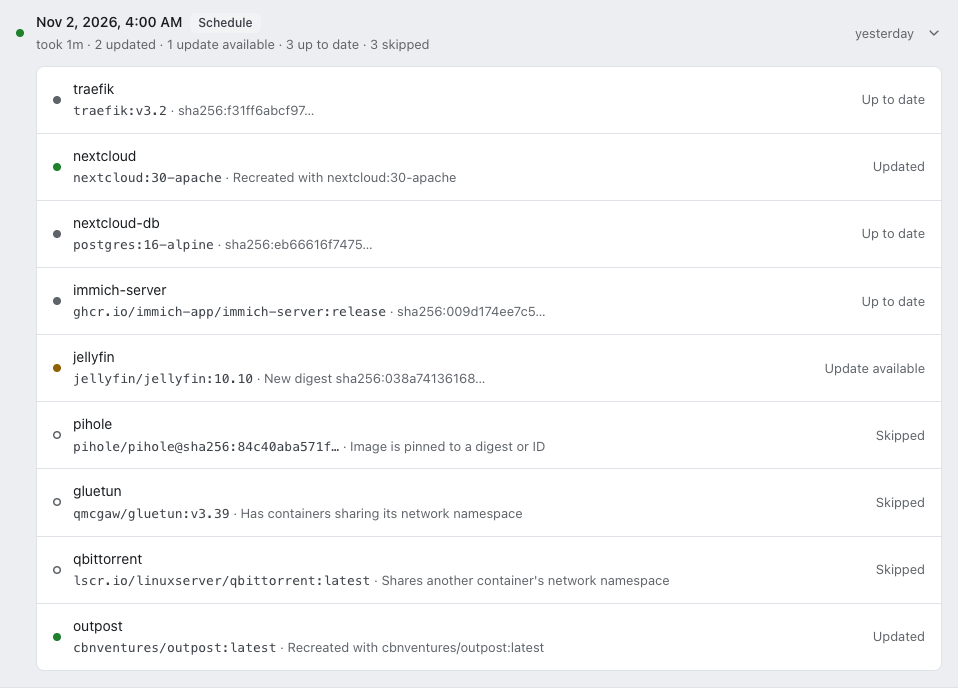
Every container in a cycle gets one of these statuses in the report:
| Status | Meaning |
|---|---|
updated | Recreated on the new image and passed the health or settle check. |
available | A newer image exists, but the container is monitor-only. |
up-to-date | The running image is already the newest one for its tag. |
skipped | A pinned or local-only image, a shared network namespace, its owner, a container configured for automatic removal, or Outpost itself when it can't update itself. |
rolled-back | The new container failed and the previous one was restored. |
failed | The check, the pull, the rollback, or the helper that updates Outpost failed. The detail holds the error. |
One container's failure never stops the cycle; Outpost records it and moves on to the next container. A whole-cycle failure, such as an unreachable Docker socket, is also saved as a failed report and sent as the Update failed alert, as described in Notifications.
Only one cycle runs at a time, whether it was started by the schedule, the API, or the dashboard.