Notifications
Send an alert to your phone, chat, or inbox when Outpost updates containers, finds new images, or can't finish an update, and stay undisturbed when there's nothing to report.
Why Use This Feature?
- Delivers to 11 services, from ntfy and Telegram to email and plain webhooks, so alerts land in an app you already watch.
- Lets each destination pick its own events so failures can reach your phone while a team chat gets every update.
- Groups each check's results into one alert per event, listing every container involved, so a busy night doesn't flood you.
- Seals tokens, passwords, and webhook URLs with the encryption key so neither the dashboard nor the API shows them again.
- Stays silent when every container is current so the alerts you get are worth reading.
Add a Destination
Each destination is one place alerts go, such as an ntfy topic, a Telegram chat, or an email inbox.
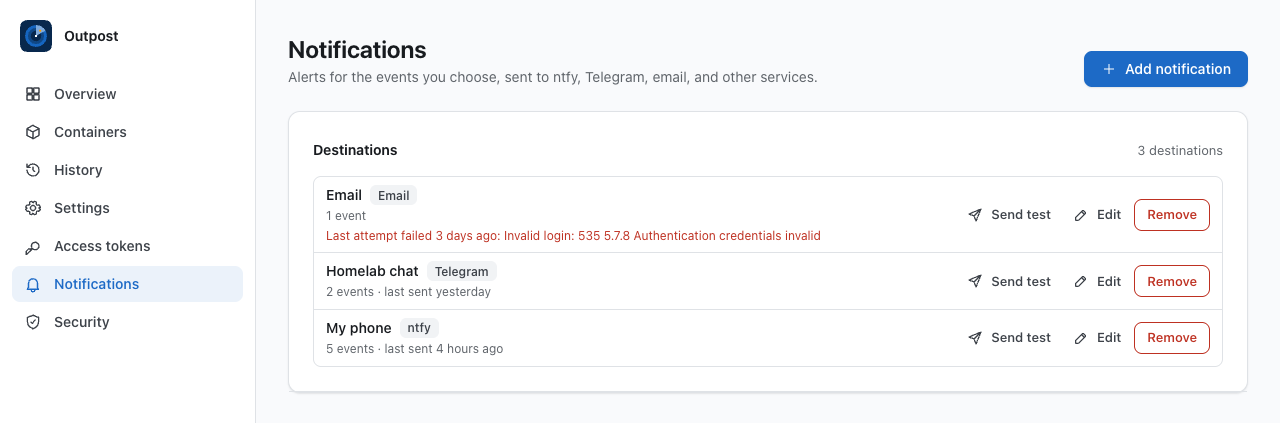
- Open Notifications, under Settings in the sidebar, and select Add notification. On a phone, Notifications is in the account menu.
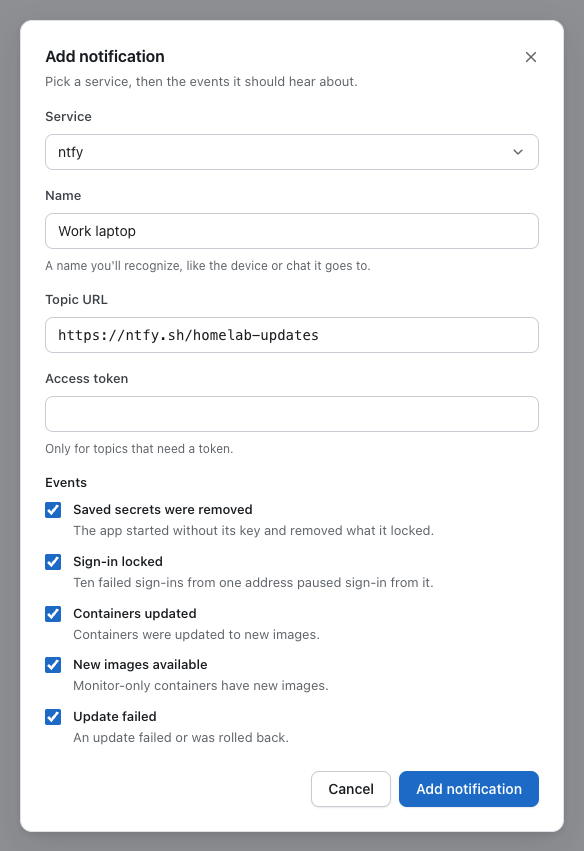
- Choose a Service. Its fields appear below it, as described in Services.
- Enter a Name you'll recognize, like the device or chat it goes to, of up to 80 characters. Each destination needs its own name, and names that differ only in letter case count as the same.
- Fill in the service's fields.
- Under Events, check the events this destination should hear about. All five start checked, and at least one is needed.
- Select Add notification.
The new destination appears under Destinations, newest first. It is recommended to select Send test next to it right away, as described in Send a Test.
info
The service can't be changed after the destination is added. To move alerts to another service, add a new destination and remove the old one.
Services
The dialog offers these services, in this order:
| Service | Fields | What to enter |
|---|---|---|
| ntfy | Topic URL, Access token (optional) | The full topic URL on ntfy.sh or your own server, such as https://ntfy.sh/my-alerts. The token is only for topics that need one. |
| Reverse Proxy for ntfy | Context URL, Context token (optional) | The https:// URL of the context, with its interpreter set to outpost. The token is only for contexts that need one. |
| Telegram | Bot token, Chat ID | A bot token from @BotFather, such as 123456:ABC-DEF, and a user, group, or channel the bot can post to. |
| Discord | Webhook URL | The URL from the channel's Integrations settings, starting with https://discord.com/api/webhooks/. |
| Slack | Webhook URL | The URL of an incoming webhook in your Slack app, starting with https://hooks.slack.com/. |
| Gotify | Server URL, App token | Your Gotify server's URL, and the token of an application you made in it. |
| Pushover | User key, App token | Your user key, and the API token of an application you made in Pushover. |
| Matrix | Homeserver URL, Room ID, Access token | An https:// homeserver, a room ID such as !room:example.com, and the Matrix access token of an account that's already in the room. Room aliases that start with # aren't accepted, because sending needs the room ID. |
| SMTP server, Port, Security, Username (optional), Password (optional), From, To | An SMTP server and the addresses to send from and to, as described in Email. | |
| Apprise | Apprise URL, Service URLs (optional) | The notify URL of your Apprise API server with its config key, such as http://apprise:8000/notify/alerts. Service URLs, separated by spaces, are only for a stateless server. |
| Webhook | URL, Bearer token (optional) | Any http:// or https:// endpoint that accepts a JSON POST, as described in Webhook Payload. The token is sent as Authorization: Bearer. |
Secret Fields
These secret fields are sealed with the encryption key when you save, and the dashboard and the API never show them again:
- Tokens and keys — The ntfy Access token, the Reverse Proxy for ntfy Context token, the Telegram Bot token, the Gotify and Pushover App token, the Pushover User key, the Matrix Access token, and the webhook Bearer token.
- URLs that work like passwords — The Discord and Slack Webhook URL, the Apprise URL and Service URLs, and the webhook URL.
- Passwords — The email Password.
Every other field, such as a topic URL, a chat ID, or an email address, is saved as entered and shown when you edit the destination.
- SMTP server and Port — The server Outpost hands each alert to. Port starts at
587. - Security — STARTTLS, the default, switches the connection to TLS and won't send without it. TLS uses TLS from the start, usually on port
465, and None sends without encryption. - Username and Password — Leave Username blank when the server doesn't need a login, and Outpost won't sign in.
- From and To — The sender's address, and one or more recipients separated by commas.
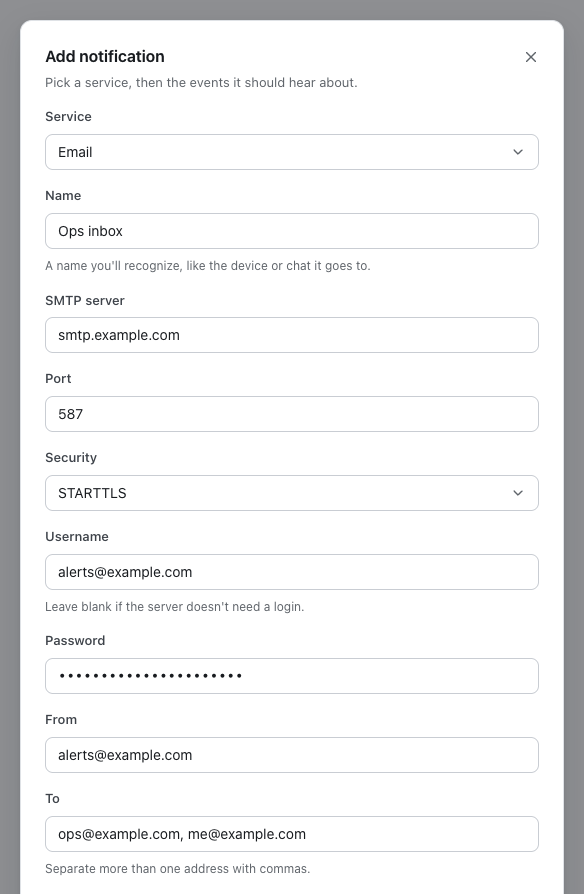
Each alert arrives as a plain-text email, with the alert's title, such as Outpost: Update failed, as the subject.
Choose Events
Each destination gets only the events checked under Events, so you can send failures to one place and everything to another:
| Event | Key | Sent when |
|---|---|---|
| Saved secrets were removed | secrets-removed | Outpost started without its encryption key and removed the secrets the old key sealed. Only destinations that still work can get it. |
| Sign-in locked | sign-in-locked | Ten failed sign-ins from one address within 15 minutes paused sign-in from it. Each address is reported at most once every 15 minutes. |
| Containers updated | updates-applied | A check updated one or more containers. |
| New images available | updates-available | A check found newer images for monitor-only containers. Every check sends it again until you apply the update. |
| Update failed | update-failed | An update failed or was rolled back, or a whole check couldn't run, such as when Docker can't be reached. |
Wrong codes, rejected passkeys, and wrong passwords on the Security page count toward the sign-in limit too, as described in Web Dashboard. Wrong setup codes have their own count and never send Sign-in locked.
When Alerts Are Sent
- One alert per event — A check sends at most one alert for each event, listing every container it applies to. A check where every container is up to date or skipped sends nothing.
- Every check — Scheduled checks, checks started from the dashboard or the API, and single-container checks all send alerts.
- Titles — Services that show a title get the event's name after
Outpost:, such asOutpost: Containers updated. - Priority — Update failed, Saved secrets were removed, and Sign-in locked are sent as high priority, and the others as default. ntfy gets
4or3, Gotify8or5, Pushover1or0, Apprisewarningorinfo, and Discord a red or blue message.
The title and message of two typical alerts read like this:
Outpost: Containers updated
Updated 2 containers: web (ghcr.io/example/web:latest), worker (ghcr.io/example/worker:latest).

Outpost: Update failed
Couldn't update 1 container: api (ghcr.io/example/api:2) was rolled back: New container is unhealthy; rolled back to the previous container.
Send a Test
Select Send test next to a destination to check its settings without waiting for an update. It sends this message right away:
Outpost: Test notification
This is a test from Outpost. Alerts for the events you chose will look like this.
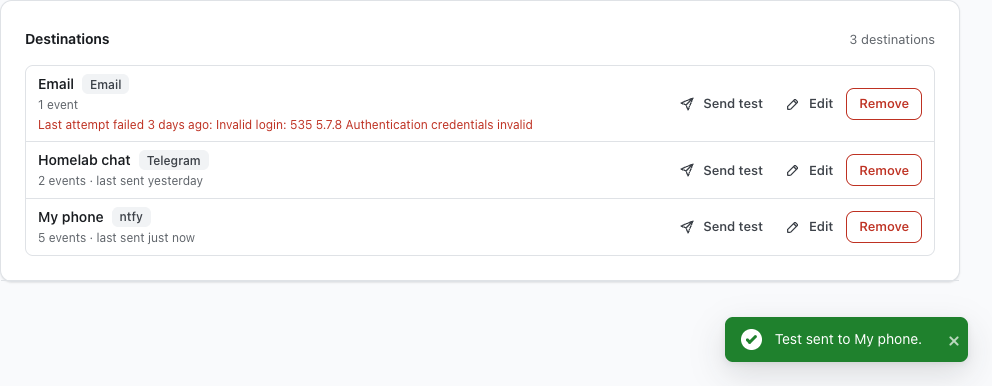
- A notification in the corner then says Test sent to and the destination's name, or The test to … couldn't be sent: followed by the reason, such as
HTTP 401: unauthorizedorNo answer within 10 seconds. - The test counts as the destination's last send, so its status changes too.
- Send test is unavailable while a destination waits for removed secrets, as described in Lost Encryption Key.
Delivery Status
Each row under Destinations shows the destination's name, its service, how many events it gets, and how its last send went:
- not sent yet — Nothing has been sent to it, not even a test.
- last sent and a time — The service accepted the last alert or test.
- Last attempt failed, a time, and a reason — The service refused the send or didn't answer. This shows in red on its own line, with the same reasons a failed test shows.
Alerts go out in the background, so a slow service never holds up a check or a sign-in. Each send has 10 seconds to finish.
A failed send never affects the check or sign-in that caused it, and Outpost doesn't retry it. The reason stays on the row until the next send works.
Edit a Destination
- Select Edit next to the destination.
- Change its Name, its fields, or its Events. The Service is fixed.
- Select Save.
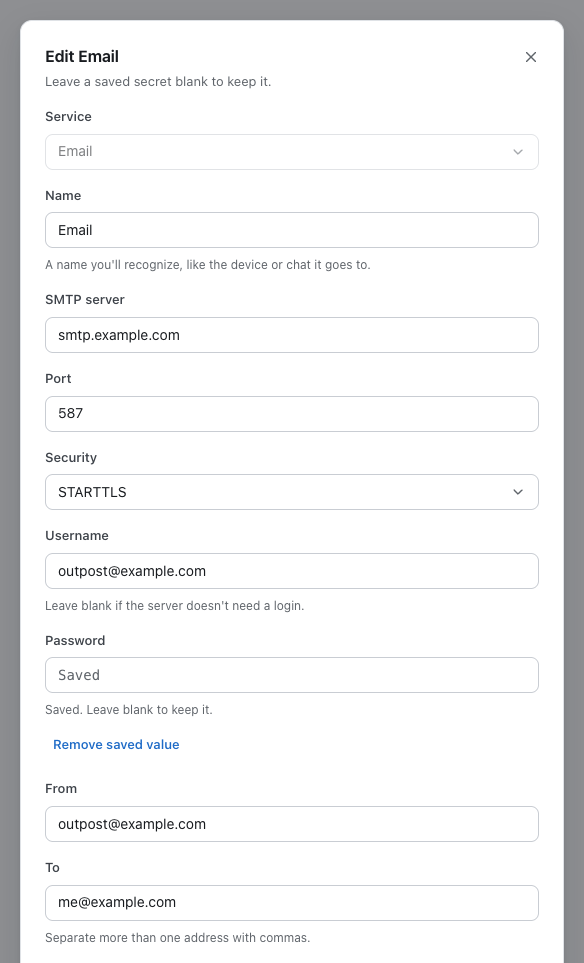
- Saved secrets — Saved secret fields show Saved and stay empty, because Outpost never shows them again. Leave a saved secret blank to keep it, or type a new value to replace it.
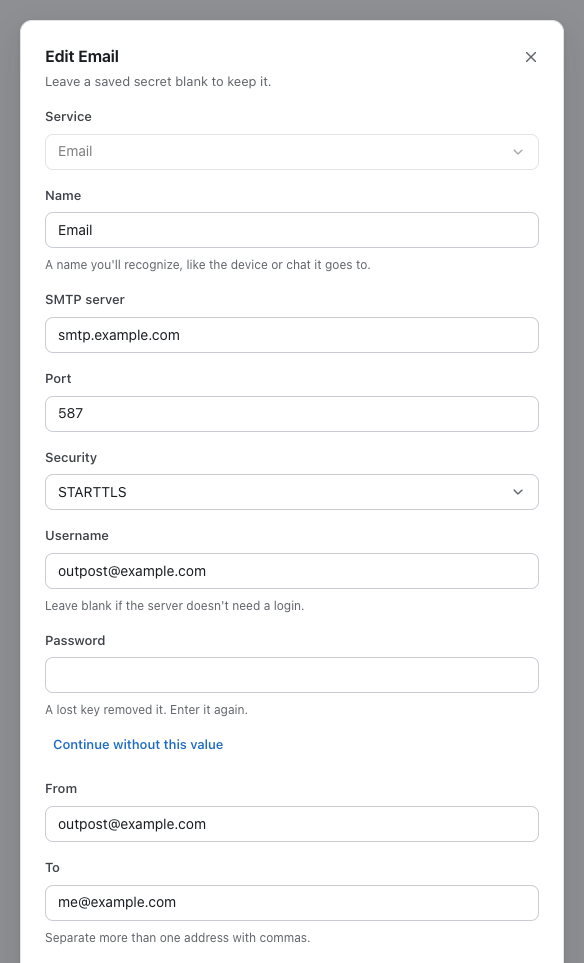
- Optional secrets — Select Remove saved value below an optional secret, such as an ntfy Access token, to delete it when you save, or Keep saved value to undo that. After a lost key, a removed optional secret offers Continue without this value instead, which resumes alerts without it, and Require this value undoes that.
- When changes apply — The next alert uses the new settings.
Remove a Destination
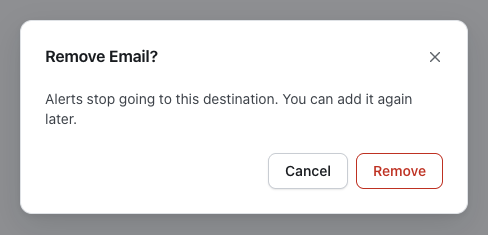
Select Remove next to the destination, then Remove in the dialog that asks to confirm. Alerts stop going to it right away, and its name is free to use again.
Lost Encryption Key
Outpost seals secret fields with the encryption key in keys/installation.key, inside the data directory. If it starts without that file, it makes a new key, and the secrets the old key sealed can't be opened anymore:
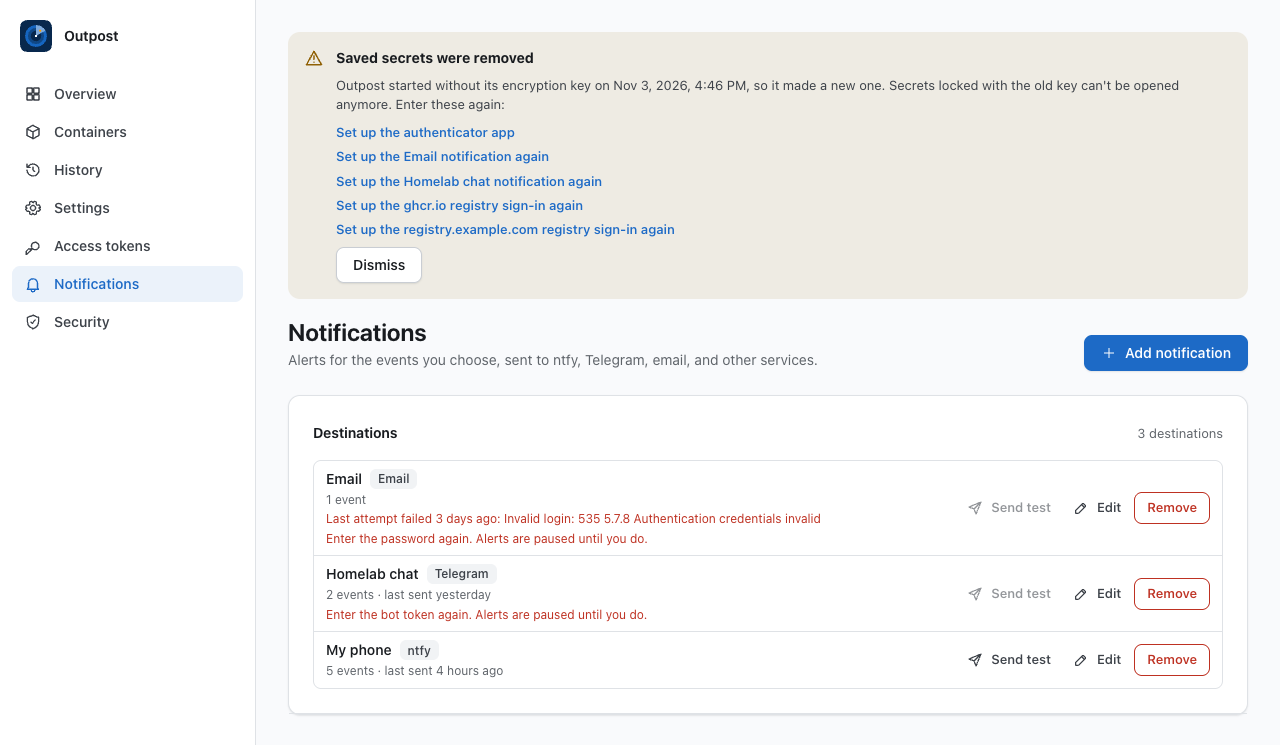
- Secrets removed — Each destination's secret fields are removed, but the destination stays with its name, service, events, and other fields.
- Alerts paused — A destination that lost a secret is skipped until you enter it again with Edit. Its row says what's missing, such as
Enter the bot token again. Alerts are paused until you do. - Notice — The Saved secrets were removed notice at the top of the dashboard lists each one, such as Set up the Homelab chat notification again, which opens Notifications. Dismiss hides the notice, but the destination stays paused until its secrets are entered again.
- Alert — Destinations without secret fields, such as an ntfy topic without a token, keep working and get the Saved secrets were removed alert if they chose it.
See Backup and Recovery for everything a lost key removes, and for keeping the key with your backups.
Webhook Payload
The Webhook and Reverse Proxy for ntfy services get each alert as JSON in a POST, with Content-Type: application/json. When a token is set, it's sent as Authorization: Bearer too.
{
  "version": 1,
  "app": "outpost",
  "event": "update-failed",
  "title": "Update failed",
  "message": "Couldn't update 1 container: api (ghcr.io/example/api:2) was rolled back: New container is unhealthy; rolled back to the previous container.",
  "priority": 4,
  "tags": ["whale", "warning"],
  "occurredAt": "2026-10-26T04:01:12.503Z",
  "details": {
    "containers": [
      {
        "container": "api",
        "image": "ghcr.io/example/api:2",
        "status": "rolled-back",
        "detail": "New container is unhealthy; rolled back to the previous container"
      }
    ],
    "finishedAt": "2026-10-26T04:01:12.480Z"
  }
}
| Field | Description |
|---|---|
version | The payload format, 1. |
app | Always outpost. |
event | The key from Choose Events, or test for Send test. |
title | The event's name, such as Update failed, without the Outpost: prefix. |
message | The same text the other services show. |
priority | 4 for high-priority events, otherwise 3. |
tags | ntfy tag names, listed below. |
occurredAt | When the event happened, as an ISO 8601 time in UTC. |
details | Data about the event, listed below. |
event | tags | details |
|---|---|---|
secrets-removed | key, warning | items, the list of secrets to enter again. |
sign-in-locked | lock | address, the address that reached the limit. |
updates-applied | whale, white_check_mark | containers, the results that were updated, and finishedAt. |
updates-available | whale | containers, the results that were available, and finishedAt. |
update-failed | whale, warning | containers, the failed and rolled-back results, and finishedAt. A whole check that couldn't run sends error, startedAt, and finishedAt instead. |
test | bell | An empty object. |
Each entry in containers has the container, image, status, and detail of one result, as the report records it.
API Routes
The Notifications page calls these routes. They work only for a browser that is signed in to the dashboard, so an access token gets 403 with the code session_required and can't read or change where alerts go.
| Method | Path | Description |
|---|---|---|
GET | /api/v1/notifications | Lists every destination, newest first. |
GET | /api/v1/notifications/events | Lists the events in the dialog's order, with defaultEnabled for the ones a new destination starts with. |
POST | /api/v1/notifications | Adds a destination and answers 201 with it. |
PUT | /api/v1/notifications/:notificationId | Changes a destination's name, fields, and events, and answers with it. clearSecrets lists optional secrets to clear, saved or removed by a lost key, each once and never with a new value for the same field. |
DELETE | /api/v1/notifications/:notificationId | Removes a destination and answers 204. |
POST | /api/v1/notifications/:notificationId/test | Sends the test message and answers {"delivered":true}, or {"delivered":false} with a message. |
- CSRF — Changes need the sign-in's CSRF token in the
X-CSRF-Tokenheader, like every change the dashboard makes. - No secret values — Answers never include a secret value.
secretsnames the saved secret fields, andsecretsMissingnames the ones a lost key removed. - Errors — A taken name gets
409with the codenotification_exists, and an unknown ID gets404withnotification_not_found. A body that breaks a rule gets422withinvalid_request, andissuesnames each field, such assettings.url.
Request Body
{
  "service": "ntfy",
  "name": "My phone",
  "settings": {
    "url": "https://ntfy.sh/my-alerts",
    "token": "tk_..."
  },
  "events": ["update-failed", "sign-in-locked"]
}
service— A key from the table below.PUTcan leave it out, since the service can't change.name— 1 to 80 characters, unique without regard to letter case.settings— The service's fields, each as a string, the emailportincluded, where a blank optional field counts as unset. OnPUT, a saved secret that is left out or blank keeps its value, while any other field that is left out is cleared.clearSecrets— OnPUT, the optional secrets to clear, such as["token"]: saved ones, or ones a lost key removed, each listed once. A field can't be cleared and given a new value at once.events— One or more event keys, each listed once.
| Service | service | settings keys |
|---|---|---|
| ntfy | ntfy | url, token |
| Reverse Proxy for ntfy | ntfy-reverse-proxy | url, token |
| Telegram | telegram | botToken, chatId |
| Discord | discord | webhookUrl |
| Slack | slack | webhookUrl |
| Gotify | gotify | url, token |
| Pushover | pushover | userKey, appToken |
| Matrix | matrix | homeserverUrl, roomId, accessToken |
email | host, port, security (starttls, tls, or none), username, password, from, to | |
| Apprise | apprise | url, urls |
| Webhook | webhook | url, token |
Response Body
{
  "id": "ntf-1b3d5f7a9c0e2b48",
  "name": "My phone",
  "service": "ntfy",
  "settings": {
    "url": "https://ntfy.sh/my-alerts"
  },
  "secrets": {
    "token": true
  },
  "secretsMissing": [],
  "events": ["update-failed", "sign-in-locked"],
  "lastAttemptAt": null,
  "lastError": null,
  "createdAt": "2026-10-26T09:12:40.118Z",
  "updatedAt": "2026-10-26T09:12:40.118Z"
}
lastAttemptAt and lastError are what the row's status shows, with lastError set to null after a send that worked.